Order your WIC foods.
We'll bring them to your door.
A step-by-step guide for WIC families
Your very first order takes a few extra steps, because you're setting up two accounts at once. This guide walks you through every one of them. After that, ordering only takes a minute.
Free delivery. No cost to you or your WIC agency.
Before you start
What you'll need
- Your eWIC card
- An email address you can check
- A phone, tablet, or computer with internet
- The address where you want your food sent
Read this first
Your first order takes 4 steps
- 1
Make your WICShopper Online account, your shopping account.
- 2
Fill your cart and press Submit Order.
- 3
Make a WIC Direct account, your benefits account, and confirm your email.
- 4
Go back and press Submit Order again. Now your order is placed.
After your first order, you just sign in to WIC Direct and press Yes. That's all.
You will have two accounts
Ordering food for delivery uses two accounts. They do different jobs. It helps to know which is which before you begin.
WICShopper Online
- You make it the first time you visit WICShopper Online.
- You use it to pick foods, build your cart, and watch your orders.
- You sign in with your email and a password.
WIC Direct
- You make it at checkout, during your first order.
- You use it to say yes to paying with your WIC benefits.
- You sign in with a username and a password you make.
Make your shopping account
This is your WICShopper Online account.
- 1
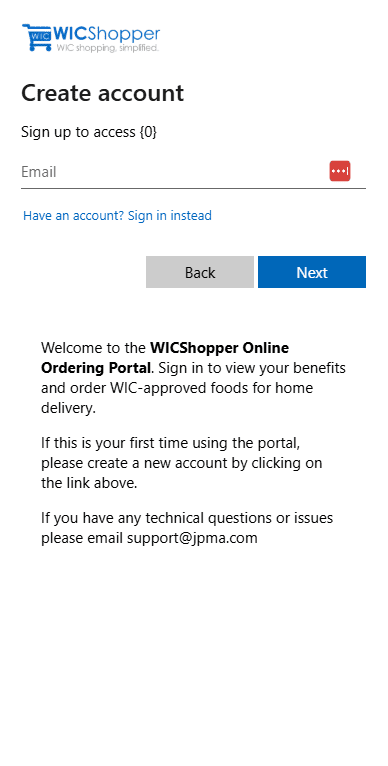
Open the WICShopper Online Ordering Portal.
- 2
On the Create account screen, type your email address. Press Next.
- 3
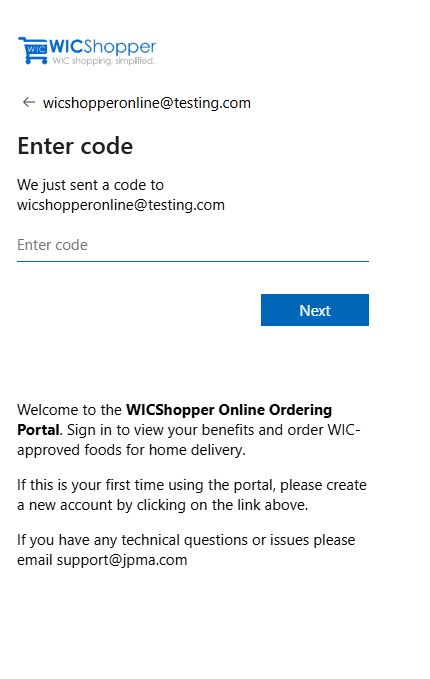
WICShopper emails you a code. Look in your inbox. If you don't see it, look in your spam or junk folder.
- 4
Type the code and press Next.
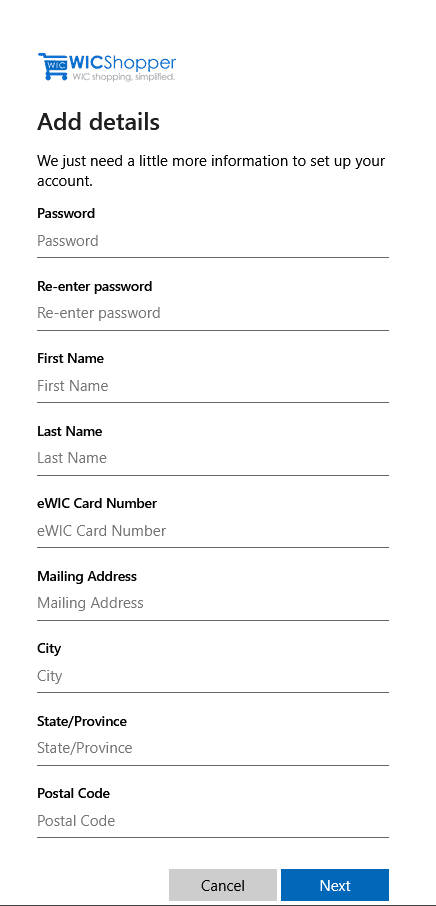
Next, fill in the rest of your account:
- A password, typed twice
- Your first name and last name
- Your eWIC card number, from the front of your card
- Your mailing address, city, state, and ZIP code
Press Next. You are signed in and you land on the Home screen.
Coming back later? On the Create account screen, press "Have an account? Sign in instead," then use your email and password.
Find your way around
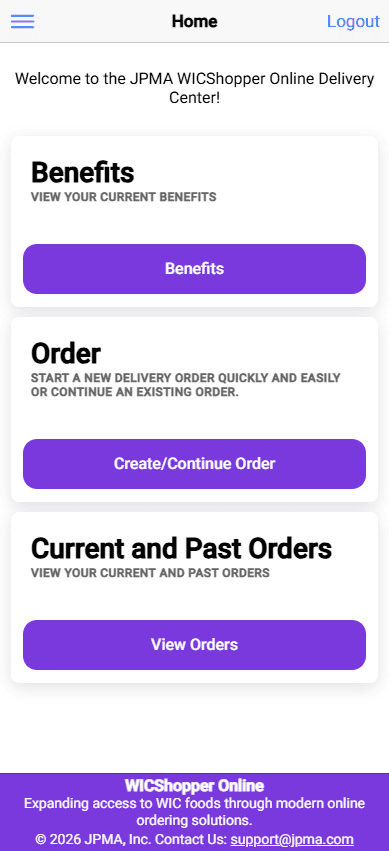
The Home screen is where you start every time. It has three buttons: Benefits, Create/Continue Order, and View Orders.
Press the menu icon in the top left corner to open the menu. The menu takes you to Home, Profile, Benefits, and Help. It also has Logout.
Check your benefits
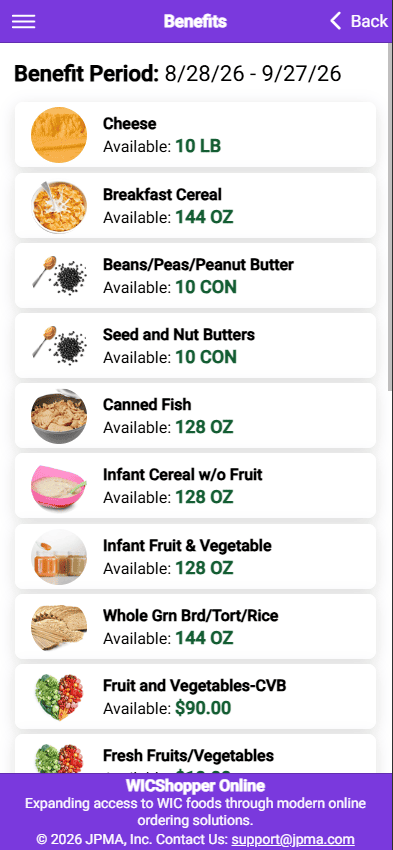
The Benefits screen shows what you have left to spend this month. It updates the moment you look at it.
- 1
Press Benefits on the Home screen or in the menu.
- 2
Look at the Benefit Period dates at the top. These are the dates you can use your available benefits.
- 3
Scroll down to see how much you have left in each group, like cereal, cheese, or fresh fruits and vegetables.
Pick your foods
From the Home screen, press Create/Continue Order.
- 1
Press a food group, or the arrow next to it, to open it.
- 2
Press the + button next to a food to add one.
- 3
Use − and + to change how many you want.
- 4
Keep going through the other food groups.
You only see foods you have benefits for. The amounts change as you add items.

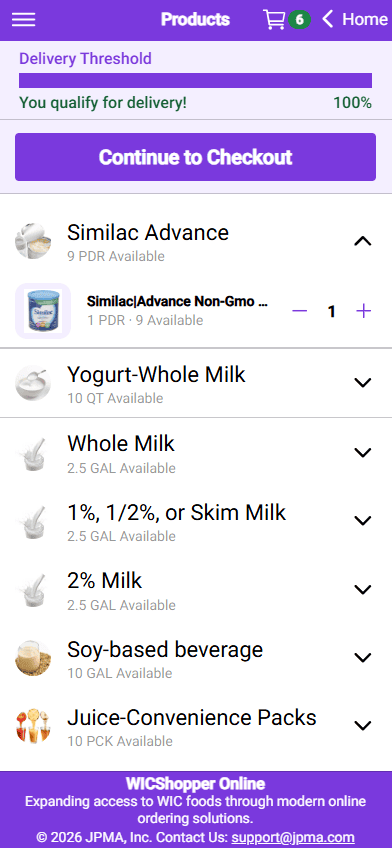
Press Continue to Checkout when you're ready.
Check your cart
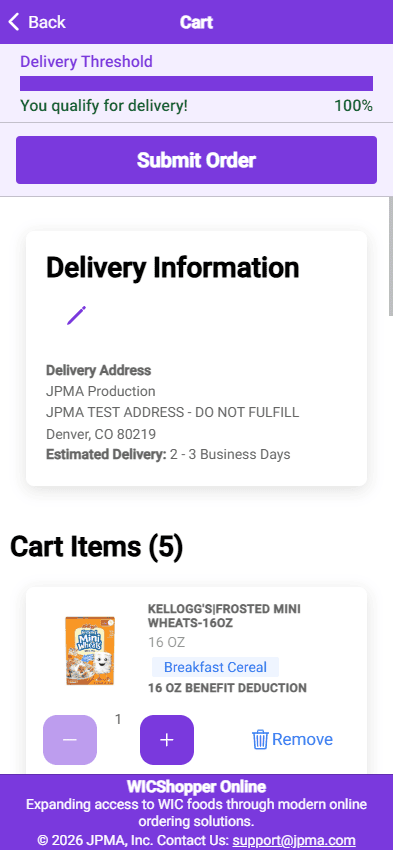
The Cart screen shows your delivery address and everything you picked.
- 1
Review your delivery address. Press the pencil icon to change it.
- 2
Look at each food. Each one shows the size and how much of your benefits it uses.
- 3
Use − and + to change amounts. Press Remove to take something out.
- 4
When it looks right, press Submit Order.
Say yes to using your benefits
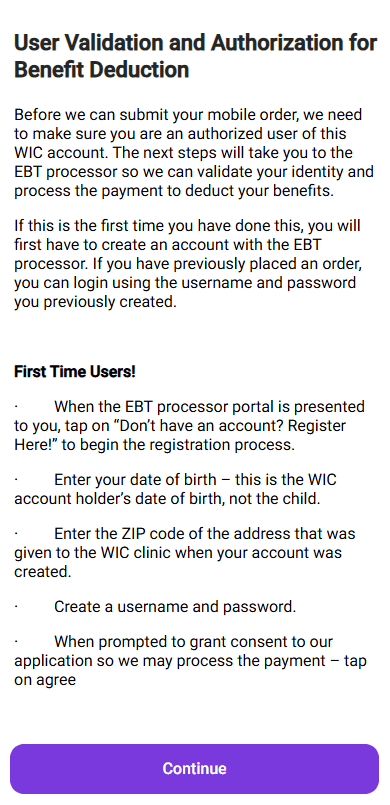
Pressing Submit Order does not use your benefits yet. First, WICShopper sends you to WIC Direct, to verify your card and benefits. A screen comes up first to explain this — read it, then keep going.
7.1 Your first order (this part takes the longest)
- 1
On the WIC Direct screen, press "Don't have an account? Register Here!"
- 2
Type your eWIC card number.
- 3
Type the birth date of primary adult on the WIC account. This is not the child's birth date.
- 4
Type the ZIP code you gave the WIC clinic when you signed up. This may not be where you live now.
- 5
Make a username and a password. Write them down.


- 6
WIC Direct sends an email to the address you gave them. Open that email and confirm your address. If it's not there, look in your spam or junk folder.
- 7
Go back to WICShopper Online. Your cart is still there. Press Submit Order again.
- 8
WIC Direct asks if WICShopper can use your benefits to pay. Press "Yes, grant access."
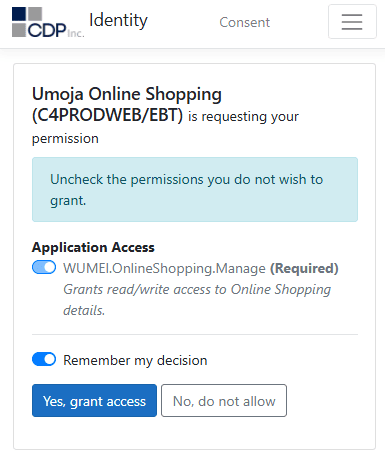
You go back to WICShopper Online and your order is placed. Your benefits are used at that moment.
7.2 Every order after the first one
If the WIC Direct step doesn't work
Most problems come from one of these. Try them in order.
It says my birth date is wrong.
Use the birth date of the primary adult on the WIC account, not the child's birth date.
It says my ZIP code is wrong.
Use the ZIP code you gave the WIC clinic when you signed up. If you moved, try your old ZIP code.
My card number will not work.
Type the number from the front of your eWIC card. Do not add spaces or dashes.
I never got the email from WIC Direct.
Look in your spam or junk folder. Wait a few minutes and look again.
I made the account but I don't see my order.
Go back to WICShopper Online and press Submit Order again. The order isn't placed until you do.
I forgot my WIC Direct password.
Use the password help link on the WIC Direct sign-in screen.
Still stuck? Email JPMA at [email protected], or call your WIC clinic.
Watch your order
Press View Orders on the Home screen or in the menu.
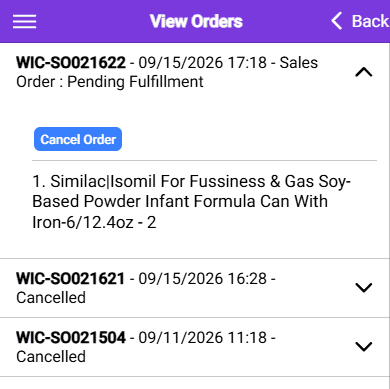
Your newest order is at the top. It shows the order number, the day and time you sent it, and the tracking information. Press the order to see the foods in it. Tap the tracking number to launch the carrier's website to see updates.
Cancel an order
- 1
Go to View Orders.
- 2
Find the order. If you can still cancel it, you'll see a Cancel Order button.
- 3
Press Cancel Order.
You have until noon the next work day
After that, your food is already being packed and you can't cancel it in the app.
When an order is canceled, your benefits come back to you. The order shows as Cancelled the next time you sign in.
If you need to cancel after that, call your WIC clinic. They can help.
Tell us about a problem
If something is missing, broken, wrong, or the delivery went badly, you can tell us right from that order.
- 1
Go to View Orders and open the order with the problem.
- 2
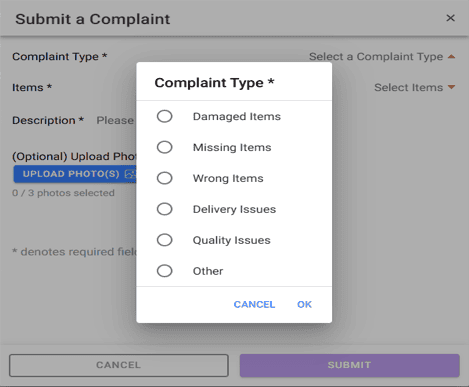
Press Submit a Complaint.
- 3
Pick what went wrong: Damaged Items, Missing Items, Wrong Items, Delivery Issues, Quality Issues, or Other. Press OK.
- 4
Under Items, pick the foods the problem is about.
- 5
Write what happened. This part is needed.
- 6
You can add up to three photos. This helps.
- 7
Press Submit.
Get help
Trouble with your delivery
Something missing, damaged, or wrong with the items you ordered? Use the Submit a Complaint button to quickly notify the vendor.
Questions about your benefits
Have a question about your WIC benefits or what foods you can get? Call your WIC clinic.
Trouble with the app
Signing in, an error message, anything technical? Email JPMA at [email protected], or press Help in the menu.